How to make a round profile picture (avatar) free
WhatsApp, Instagram, Slack, LinkedIn, Discord: almost every app shows your profile picture inside a circle. The common confusion is thinking you have to "crop the image round" — and end up cut off. The truth is simpler: you upload a square image with the subject centered and the app masks it into a circle. This guide shows how to leave that cutout perfect, with the background you want.
The golden rule: square, subject centered
Almost every service asks for a square profile photo (same width and height) and crops it to a circle. Typical sizes: WhatsApp ~640×640, Instagram ~320×320, LinkedIn accepts large images but shows a square. A 512 × 512 px avatar works everywhere and weighs little. What matters: leave a little margin around the face. Since the circle cuts the corners, if the face reaches the edge it gets clipped.
Step by step
- Open your photo in PhotoCut Studio.
- Remove the background with AI Cutout (ideal for portraits) and refine the hair with the brush if needed.
- In the export preset choose "Circle avatar 512": it centers the subject, leaves margin and exports a 512 px square.
- Then choose the new background: transparent, a solid color (very clean for profiles) or an image. The preset goes first: choosing it sets the background back to transparent and you'd have to set your color again.
- Download and upload it as your profile picture. The app will show it in a circle automatically.
Tips for an avatar that looks good
- Center the face in the square; eyes around the upper third work best.
- Contrast with the background: if your hair or clothing is dark, avoid a dark background (and vice versa) so your silhouette stands out inside the circle.
- Try a transparent PNG background. A transparent PNG adapts to any profile's light or dark theme and keeps a consistent identity.
- Check on mobile: an avatar that reads at 40–48 px in many places; if that size is unrecognizable, zoom out a bit.
Without uploading your face to any server
Your photo is processed entirely in your browser. For something as personal as your face, that matters: the image never travels to the cloud or stays stored anywhere.
Common mistakes when making an avatar
- Uploading the photo as is, without cutting out. Many apps just center the square as it comes, which tends to cut off the head or leave half the body. Better to reframe the circular cutout beforehand.
- Too much zoom. If the cutout is too tight, circular cropping cuts even more of the head at the top. Leave air above.
- A background that competes. On a small avatar, too much detail behind is noise; at 40 px it becomes visual clutter.
- Exporting as JPG for a transparent background. JPG doesn't support transparency; export as PNG or WebP or the result will have a white or black fill.
- Ignoring each network's crop. Even if you upload a perfect square, some apps apply their own subject detection; check the preview the app shows before confirming.
Background ideas by use
| Use | Recommended background |
|---|---|
| LinkedIn / professional profile | Neutral solid color (gray, dark blue) or your company's brand color. |
| Transparent or a color that contrasts with your clothing/hair. | |
| Gaming / Discord | Vivid colors or a soft gradient; here a more eye-catching look works. |
| Resume or ID photo | White or light blue — see the ID photo guide below. |
Frequently asked questions
Why does my profile picture look cropped in some apps?
Because each app masks the circle a little differently, and if the subject reaches right to the edge of the square, the circle eats a slice. The fix is to leave margin: have the face take up 60% to 75% of the square's width, not 100%.
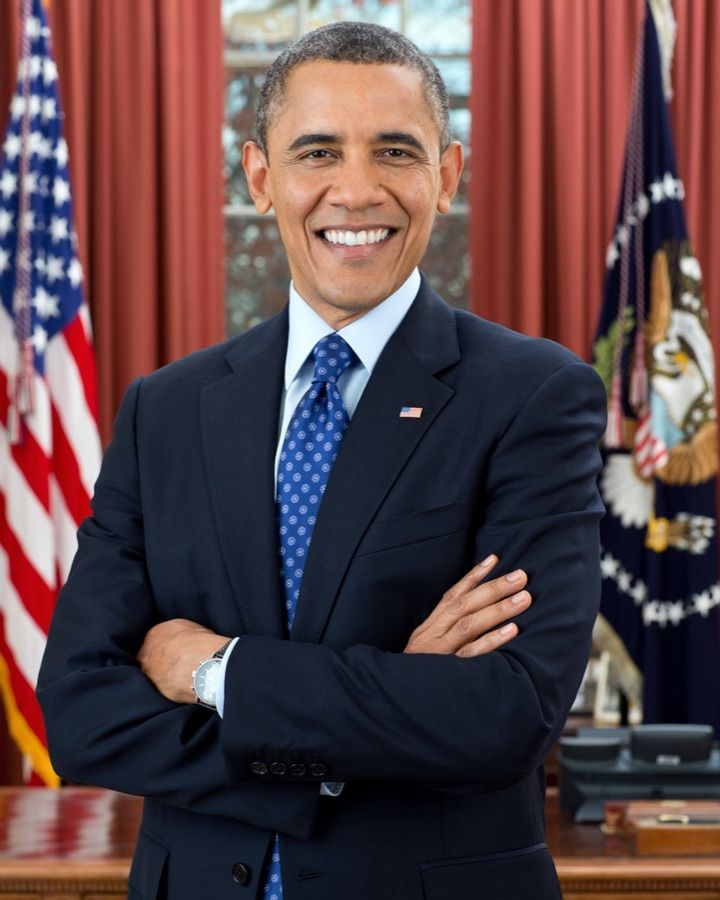
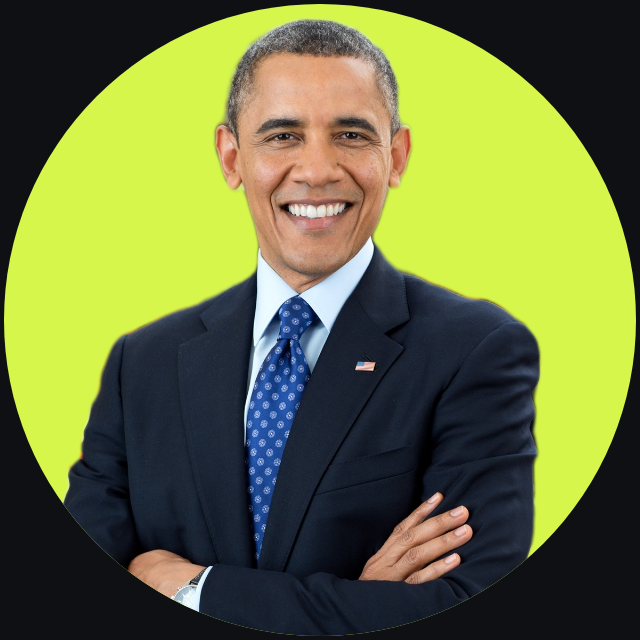
We tested it: what ends up inside the circle of the “Circle avatar 512” preset
Image: quitar-fondo-antes.jpg, 720 × 900 px, 78.4 KB (public-domain portrait).
Tool: Cutout → AI cutout, “Circle avatar 512” preset.
What I did:
- I loaded the portrait and applied “AI cutout”.
- I chose the “Circle avatar 512” preset with “Transparent” and PNG, and downloaded.
- In the PNG I measured the subject's box, the transparent pixels and the alpha of the corners.
What I measured:
- It produced a 512 × 512 px, 160 KB PNG. The four corners have alpha 0, 0, 0, 0: the preset really crops to a circle, it doesn't just center.
- 72.1% of the image ended up transparent: 21.5% is the corners outside the circle and the rest is cut-out background inside it.
- The figure sits 10.4% of the height from the top edge down to the crown of the head, and starts 24.2% of the width from the left edge (it takes up 51.8% of the width and 79.7% of the height).
- AI cutout 22.0 s; the avatar download 0.5 s.
What went wrong or what limit I saw: The preset does the circular crop and the figure fits whole, but I didn't measure how each network (WhatsApp, Instagram, Slack) masks the square: that depends on the app. The crown of the head ended up 10.5% from the top edge with this portrait; with a higher face in the frame it could end up tighter. The AI cutout took ~22 s because it was the first one in a new tab on a Mac with a GPU: that includes downloading the model from my machine and preparing the GPU; in the same tab, the following ones take about 4 s.
More guides
How to remove the background from an image free (and without uploading it)
The three methods and when to use each, how to do it free with no watermark, and how to remove a background on your phone.
Product photos for Amazon, Etsy and Shopify: sizes and white background
The exact sizes and background rules for each marketplace, and how to put your product on pure white.
More guides on “White background & formal photos (ID, profile)” →